
Perform service actions
In the “Services” section, you can perform various service actions.
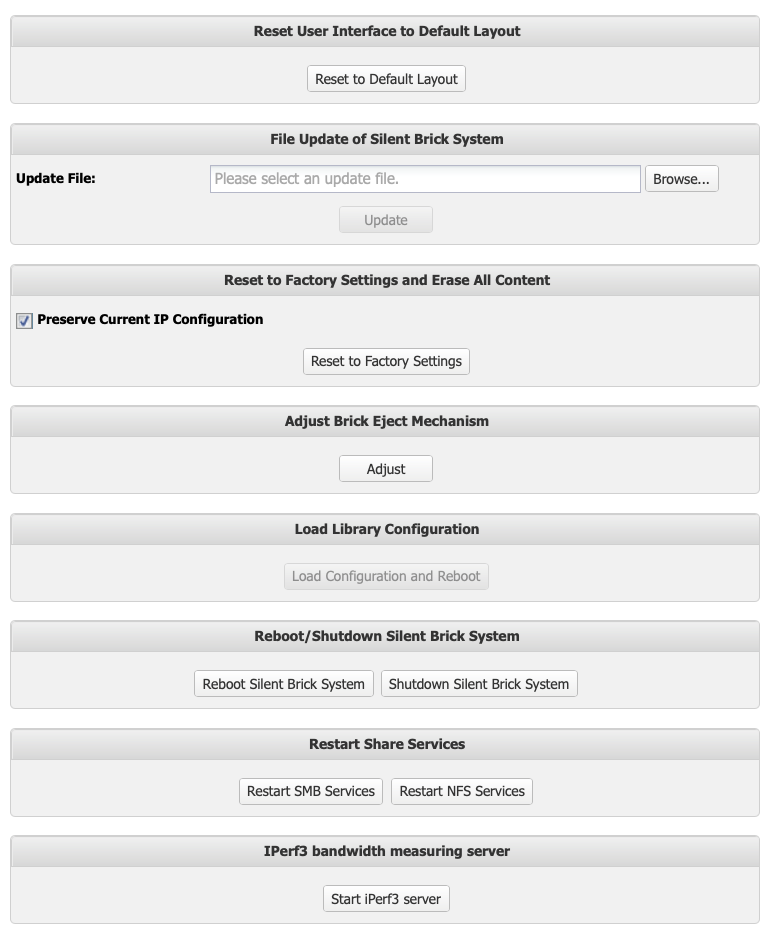
Perform updates
Preparation
The system will be unavailable during the update.
-
➤ Check the software version of your system.
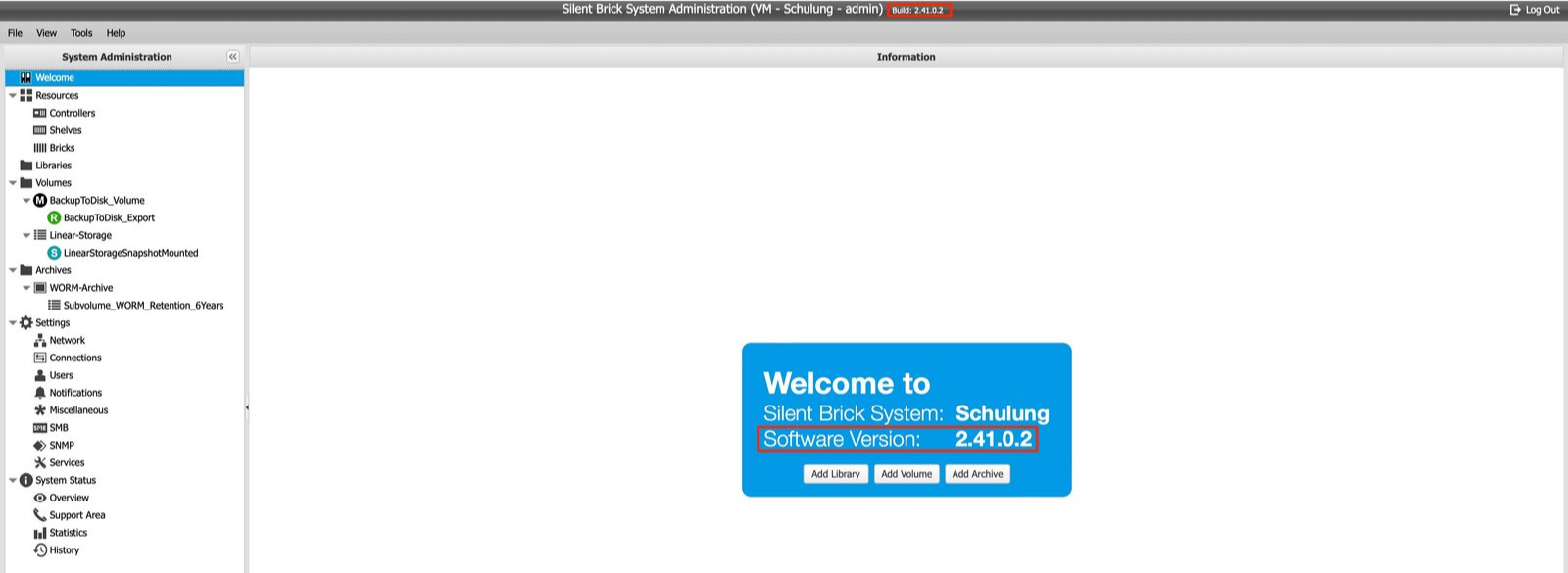
-
➤ If you have software version 2.45 or higher, you can update directly to the current version. If you have software version < 2.45, please contact support.
-
➤ Download the update from the “Software Updates” page. Here you will also find information about new features and, if applicable, things that need to be taken into account before updating.
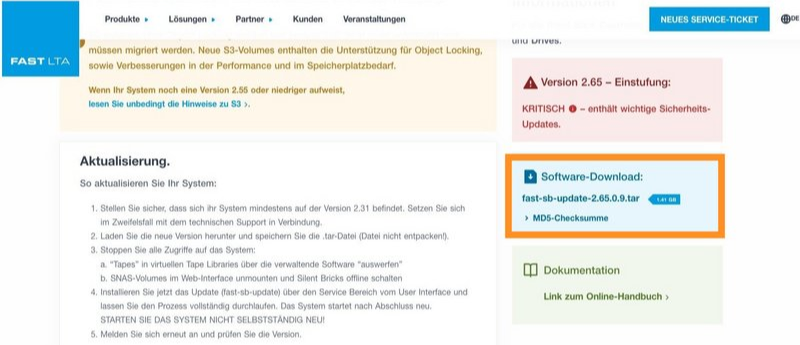
Do not unzip the .tar file. The file will be automatically unzipped and checked by the system.
Do not rename the downloaded file. The system expects the file to be checked as a .tar file with its original name.
Performing the update
Before updating, stop saving data in the system.
-
➤ Take all volumes and archives offline.
-
➤ To ensure that all accesses have been terminated, restart the system via the GUI. In the case of a replicated system, both systems must be restarted.
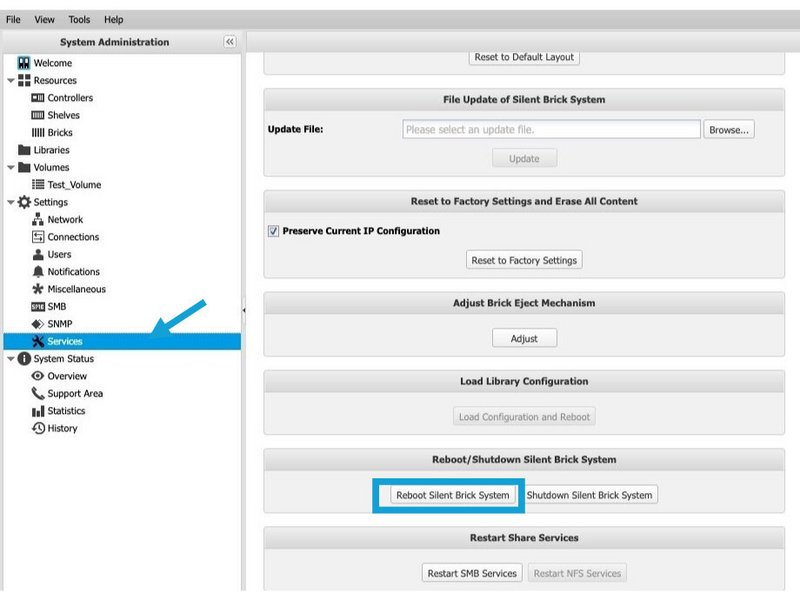
For replicated systems, always start by updating the replication partner(s).
-
➤ In the “File Update of Silent Brick Library” section, click the “Browse...” button.
-
➤ Select an update file.
-
➤ Click on the “Update” button.
Depending on the software version, the hardware used, and the number of files stored, the update takes approximately 30–60 minutes on individual computers.
Controllers with connected shelves may require up to 2 hours, as a firmware update may need to be performed on the shelf and the inserted bricks.
During the update, the system must not be restarted or disconnected from the power supply.
Testing after successful update
-
➤ Verify that the desired version is now displayed in the user interface.
-
➤ Bring archives and volumes back online
If “Pending validation” is displayed, updates are still running in the background.
Perform reset
-
➤ The “Reset User Interface to Default Layout” window will be displayed.
-
➤ To perform the reset, click the “Reset” button.
-
➤ To cancel the operation, click the “No” button.
To perform a factory reset of the settings, proceed as follows:
The factory reset restores the entire system to its factory state. All settings and data may be lost during this process.
-
➤ In the section “Reset to Factory Settings and Erase All Content,” select the reset options.
-
➤ If you wish to retain the current IP configuration, check the option “Preserve Current IP Configuration.”
-
➤ Click the “Reset to Factory Settings” button.
-
➤ The “Reset to Factory Settings” window will be displayed.
-
➤ To perform the reset, click the “Reset” button.
-
➤ To cancel the operation, click the “No” button.
Restart system
To restart the system, proceed as follows:
-
➤ In the section “Reboot/Shutdown Silent Brick Library,” click the “Reboot Silent Brick Library” button.
-
➤ The “Reboot Silent Brick Library” window appears.
-
➤ To restart the system, click the “Reboot” button.
-
➤ To cancel the operation, click the “No” button.
Shut down system
To shut down the system, proceed as follows:
-
➤ In the “Reboot/Shutdown Silent Brick Library” section, click the “Shutdown Silent Brick Library” button.
-
➤ The “Shutdown Silent Brick Library” window appears.
-
➤ To shut down the system, click the “Shutdown” button.
-
➤ To cancel the operation, click the “No” button.
Restart SMB and NFS services
To globally restart the SMB or NFS share services, use the corresponding buttons in the “Restart Share Services” section.
Test network speed
To verify the network connection speed between the Silent Brick Controller and the storage system, you can activate an iPerf3 server.

By enabling the iPerf server, port 5201 is opened for testing purposes. To perform the test, install iPerf3 on the remote system and execute the performance test as follows:
iperf3 -c <DATA-IP DES SILENT BRICK SYSTEMS> -p 5201
Restore Library Configuration
The 'Load Library Configuration' function enables the configuration of virtual tape libraries to be restored on a new Silent Brick controller if required.
A prerequisite for backing up and restoring the configuration is a connected USB stick.
Activation by FAST LTA service is required to use this functionality.
