Introduction
To archive data on the Silent Cube storage system, a volume must first be created. This is a reserved storage area in which any directory structures and shares can be defined.
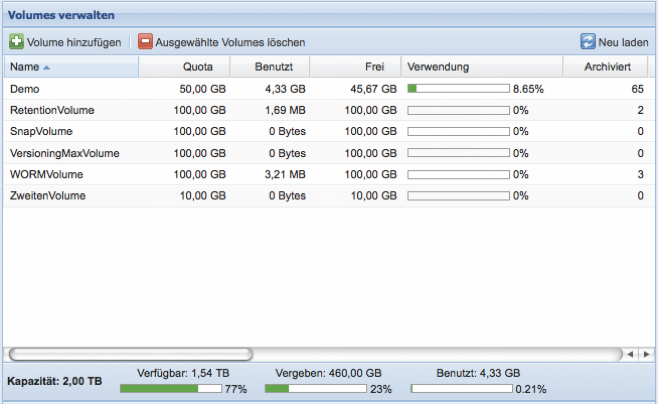
In the Administration menu, the Silent Cubes software lists all volumes that have already been created. For each volume, current information on capacity and on the quantities of archived and not-yet-archived files is also displayed. In addition, the volume type and special options are shown. Some settings for an already created volume can also be adjusted afterwards by double-clicking the corresponding list entry.
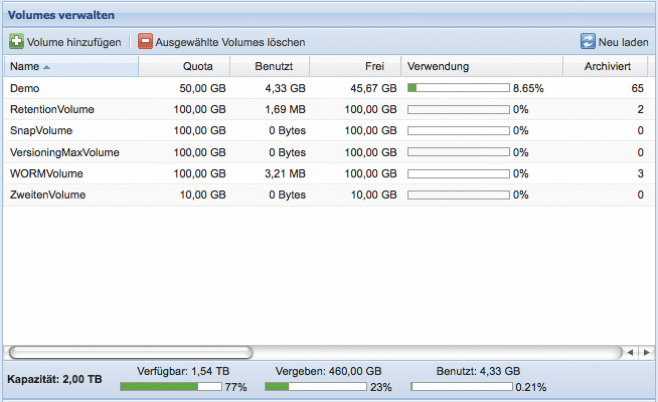
Volumes and shares are inseparably linked. In order for users to access a volume and archive data on it, shares must be provided for the volumes that have been created. The settings for the shares are therefore also located in the Administration menu.
Add Volume
Clicking the Add Volume button opens the dialog window for creating a new volume.
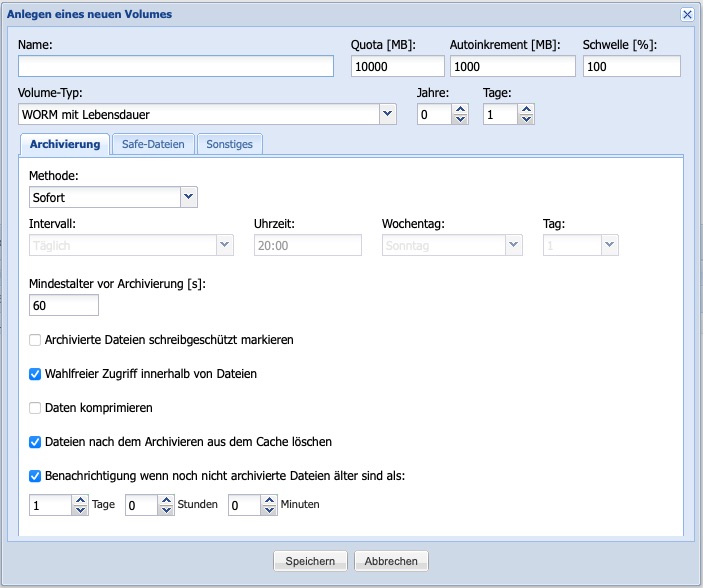
In the Name input field, a designation for the volume must first be entered. The use of spaces and certain special characters is not permitted.
The capacity of the volume is defined in MByte via the Quota [MB] input field. The maximum quota corresponds to the available storage space of all connected Silent Cube storage units. The quota of a volume can be increased at a later time, up to the maximum available capacity. It is also possible to reduce it down to the limit of the amount of data already stored.
If the freely available storage capacity of the volume is nearly exhausted and another file is pending for archiving that would exceed the volume’s quota, the quota is automatically increased by the specified size in MByte using the Autoincrement [MB] option. If the notification function has already been set up (see chapter 6.3), a warning message is sent via email. If the value 0 is entered, no automatic enlargement of the volume takes place.
Depending on the application, it may be necessary to adjust the threshold for automatically increasing the quota. This is what the Threshold [%] field is for, which sets the percentage threshold value at which the automatic increase is to be carried out.
Volume Type
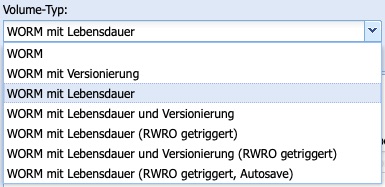
The volume type determines the manner in which data is archived on a volume. The Silent Cubes software offers several archiving methods via the Volume Type drop-down menu.
Volume Type and Compliance Option
The available volume types depend on a purchased and activated Compliance Option (for further information on activation, see chapter 6.10). Without an activated Compliance Option, only the volume type WORM is available.
Note: If one of the FAST LTA Approved Solutions (e.g., a document or image management system) is used upstream, the Compliance Option is required in most cases!
Volume Type WORM
A volume created with the volume type WORM behaves like a conventional WORM storage. Files stored in it are archived permanently (infinite retention period) and can never be deleted. Once data has been archived in it, the volume itself can no longer be removed either. Archiving is time-controlled and configurable.
Volume Type WORM with Versioning
Corresponds to the volume type WORM but additionally offers versioning functionality. This allows an already archived file to be virtually overwritten. In doing so, revisions of a file are created, which can be accessed using special methods (Revert and Switch Revision). On request, the FAST LTA Support Team provides a separate background paper on the topic of versioning.
Volume Type WORM with Retention Period
Corresponds to the volume type WORM, but offers the option of assigning data to be archived an adjustable "retention period" (retention date). After the retention date has expired, the files can be deleted manually or using a connected software system.

The retention date of a file is defined via its access timestamp (part of a file’s metadata in the file system). The archived file cannot be deleted until the date defined as the access timestamp has expired.
When creating a volume of the type WORM with retention period, a default value (years/days) can be set, which is used to determine the access timestamp lying in the future.
When a file is transferred to the Silent Cube storage system (cache storage), the time and date this file was created in the Silent Cube file system is recorded (creation date). This creation date plus the configured default value then results in the access timestamp, which is recorded in the file system.
Connected software systems can still change the access timestamp up until the time of archiving, but only if it lies further in the future than the time value calculated by the Silent Cube storage system. The default value thus also represents a minimum value for the immutable archiving period. The default value can be increased at a later time but not reduced.
If the access timestamp of an archived file lies in the past (the retention date has expired), the file can be deleted. An entire volume of the type WORM with retention period can likewise be removed if the retention date of all files archived on it has expired.
To delete a file, its reference is irrevocably eliminated from the Silent Cube’s file system. Reconstruction of the deleted reference is no longer possible, even though the raw data (bits) of a file still remain on the storage system. The storage space used by the file remains write-protected and is not released.
Volume Type WORM with Retention Period and Versioning
Corresponds to the volume type WORM with retention period, but additionally offers versioning functionality (see chapter 4.2.1.3).
Volume Type WORM with Retention Period (RWRO triggered)
Corresponds to the volume type WORM with retention period, but does not use time-controlled archiving and includes a different handling of the retention period.
The archiving process (transfer from cache storage to archive storage) of this volume type only begins once the access rights of a file are changed from Read Write (RW) to Read Only (RO). This volume type should therefore only be selected if the software system used upstream of the Silent Cube is able to initiate the archiving process accordingly.
With regard to the retention period of a file, this volume type always adopts an access timestamp modified by the upstream software system, provided that it lies in the future. Only for files without a modified access timestamp is this calculated and assigned using the adjustable default value.
Volume Type WORM with Retention Period and Versioning
(RWRO triggered)
Corresponds to the volume type WORM with retention period (RWRO triggered), but additionally offers versioning functionality (see chapter 4.2.1.3).
Volume Type WORM with Retention Period
(RWRO triggered, Autosave)
The volume type WORM with retention period (RWRO triggered, Autosave) accounts for the fact that some systems require temporary files, which change more frequently, in order to access the actual data. Only after switching from RW to RO do these files become immutable.
With the previous volume types, these temporary files were, prior to switching to RO, stored only in the cache of the Head Unit and not on the secure Silent Cube. In the event of a failure or technical problem with the Head Unit, these temporary files could be lost, which, depending on the system, could render the actual data unusable.
This volume type now introduces the Auto-Save function. With this, all data is always saved on the Silent Cube. Data that is still marked as RW is thereby "modifiable" and "deletable" - each of these actions results in a new file on the Silent Cube. Only when switching to RO are these files then marked as immutable.
Even though a new "version" of the file is created each time a temporary file is modified or deleted prior to switching to RO, these "versions" are not transparent - true versioning therefore does not take place. Only the latest version is ever visible; after "deletion" the file is removed.
Volume Type Options
When creating a new volume type, numerous options are available depending on the selected volume type and an activated Compliance Option; these are distributed across the Archiving, Safe Files, and Miscellaneous tabs.
Volume Type and Available Volume Type Options
Each volume type offers individual configuration options. The following table provides an overview of the relationship between the volume type and the available volume type options.
A volume type with versioning largely corresponds here to the associated volume type without versioning.
|
Option |
Volume Type |
|||
|
WORM |
WORM with Retention Period |
WORM with Retention Period (RWRO triggered) |
WORM with Retention Period (RWRO triggered, Auto-Save) |
|
|
Retention Period Years/Days |
|
yes |
yes |
yes |
|
Minimum age before archiving [s] |
yes |
yes |
|
|
|
Mark archived files as write-protected |
yes |
yes |
|
|
|
Random access within files |
yes |
yes |
yes |
yes |
|
Compress files |
yes |
yes |
yes |
yes |
|
Delete files from the cache after archiving |
yes |
yes |
yes |
yes |
|
Notification if not-yet-archived files are older than |
yes |
yes |
yes |
yes |
|
Notification if not-yet-triggered files are older than |
no |
|
yes |
yes |
|
Creating Safe files |
yes |
yes |
yes |
yes |
|
Optimizations for Robocopy |
yes |
yes |
|
|
|
Do not archive 0-byte files |
yes |
yes |
yes |
yes |
|
Intelligent Replace |
yes |
yes |
|
|
|
Prohibit renaming of empty directories |
|
|
yes |
yes |
|
Prohibit renaming of files |
|
|
yes |
yes |
|
Optimizations for Quantum StorNext |
yes |
yes |
yes |
yes |
|
Change volume type to "WORM with Versioning" |
yes |
|
|
|
|
Change volume type to "WORM with Retention Period and Versioning" |
|
yes |
|
|
|
Change volume type to "WORM with Retention Period (RWRO triggered, Auto-Save)" |
|
|
yes |
|
Table: Volume Type and Available Volume Type Options
Archiving / Method
Files transferred to the Silent Cube storage system are initially written to the cache storage. The Method option now allows files located in the cache storage to be transferred to the archive storage either Immediately (default) or Periodically after an adjustable time interval. Using the periodic archiving method offers the possibility of still being able to modify or delete files as long as they are still in the cache storage and have not yet been archived. The disadvantage is that data and revision security is not guaranteed until the time of archiving. For this reason, periodic archiving is mostly used for test purposes.
The time interval can be selected between Daily, Weekly, and Monthly. Furthermore, the time of day, the day of the week (for the Daily and Weekly interval), or the day of the month (for the Monthly interval) can be set.
The choice of time interval must be made in accordance with the amount of data generated and the capacity of the cache storage. If large amounts of data are to be archived, a shorter time interval should therefore be selected.

Figure: Archiving Method
Archiving / Minimum age before archiving [s]
The Silent Cube storage system archives a file only if the last access to this file (modification date) occurred at least more than 5 seconds ago (default = 60 seconds).
A large number of upstream software systems (including file managers such as Windows Explorer or Mac OS X Finder) only change a file’s metadata after a copy operation has been completed. The waiting time ensures that a file copied to the cache storage is fully available for archiving, thereby preventing data loss. The default value should only be changed in special cases.
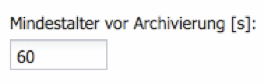
Figure: Minimum age before archiving
Archiving / Mark archived files as write-protected
If this option is activated (default = off), the access right of every file on this volume is set to Read Only (RO). This also applies to files that are still in the cache storage. This access right is also retained when the archived file is copied or loaded from the Silent Cube storage system to an external directory.

Figure: Mark archived files as write-protected
Archiving / Random access within files
This option (default = on) enables storage access to any area within files in a container format. In container formats, several files are combined into one file for performance reasons. Container formats are frequently used, for example, in archive, image, and video applications. Random access now ensures that a software system accessing the file does not have to read out the entire container first. It is therefore recommended to leave this option activated (default).

Figure: Random access within files
Archiving / Compress files
If this option is activated (default = off), files are compressed during archiving. A ZIP-like algorithm is used here, which can save storage capacity if mainly compressible files are archived (e.g., documents).
Figure: Compress data
Archiving / Delete files from the cache after archiving
If this option is deactivated (default = on), files are left in the cache storage after archiving has taken place. The advantage is that files are available more quickly from the cache storage than if they had to be loaded from the archive storage. However, to keep the cache storage "clean", it is recommended to leave this option activated.

Figure: Delete files from the cache after archiving
Archiving / Notification if not-yet-archived files are older than
If this option is activated (default = on / 1 day) and the notification function is configured, an email is sent as soon as there are still files in the cache storage that should already have been archived. Days, hours, and minutes can be defined. If the periodic archiving method has been selected, the time until a notification should be longer than the configured periodic time interval.

Archiving - Notification if not-yet-triggered files are older than
This option is only available for volumes of the type "RWRO triggered". If this option is activated (default = off) and the notification function is configured, an email is sent as soon as there are still files in the cache storage that, after a certain minimum age, should already have been triggered (RWRO) and thus archived. Days, hours, and minutes can be defined.

Safe Files
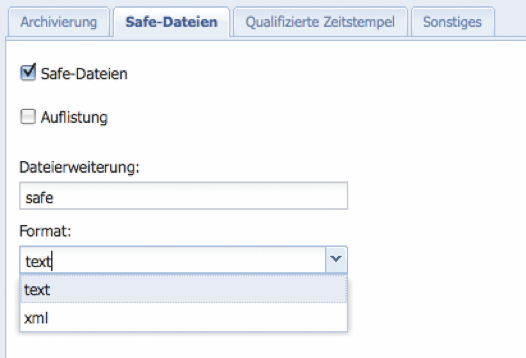
To obtain detailed information about the entire archiving process of a file, a so-called Safe file can optionally be generated (default = off). This log file is automatically created and additionally saved after a copy operation of a file to the Silent Cube storage system has been completed. The file name corresponds to the name of the archived file plus a user-definable file extension (default = *.safe).
The Safe file can be generated in text or XML format. This also allows external software systems to retrieve or process information about the archiving process. The option can also be activated at a later time. The FAST LTA Support Team provides a separate background paper on the topic of Safe files.
<?xml version="1.0" encoding="UTF-8"?>
<fileData>
<hash>4216475b55472f890aff212079ffa303b6f1cfb33e5fa5802882aa37968f78a4…
<lookupkey>64c26d29cf7ffce5333957539d8bbb04c7d2a556dad5ed967f3eb6dfea6…
<size>17210</size>
<stored>1</stored>
<safe>1</safe>
<ciphercode>0</ciphercode>
<compressioncode>12289</compressioncode>
<online>1</online>
<ingest_epoche>1250155996</size>
<ingest_iso8601>2009-08-13T11:33:16+0200</ingest_iso8601>
<creation_epoche>1250095987</creation_epoche>
<creation_iso8601>2009-08-12T18:53:07+0200</creation_iso8601>
</fileData>
Figure: Example Safe file (XML format)
Miscellaneous / Prioritize archiving
If several volumes are created within a Silent Cube system, the Silent Cubes software ensures that the storage of all volumes in the WORM area follows a certain logic. This consists of a certain number of files to be archived being processed per volume, and then the same number being processed for the following volume. This process repeats cyclically until all pending files have been archived.
If you have a volume that is continuously filled with very large files (for example, image data) and another that is continuously filled with very small files (for example, compressed text documents), an imbalance arises in the storage process. To correct this imbalance, archiving can be prioritized for the volume with the small files.

Miscellaneous / Optimizations for Robocopy
Copy operations over the network are not without risk. A network outage or a timeout can, for example, occur during a copy operation. Since the Silent Cube storage system cannot verify the copy operation itself, there is a risk that incomplete and thus corrupt files are archived. To counter this risk, there is, for example, the Robocopy program for Microsoft operating systems. Robocopy is able to resume interrupted file transfers as well as verify a transfer.
Robocopy thus initially creates the copied file on the Silent Cube storage system (cache storage) with a specific and always identical modification timestamp (January 1, 1980, 00:00:00 GMT to January 2, 1980, 00:00:00 GMT). Only once the copy operation has been verified is the original modification timestamp assigned to the copied file.
If the Optimizations for Robocopy option is activated (default), the Silent Cube storage system uses the modification timestamp to detect whether a file was transferred correctly or not. If not, the file is ignored and not archived. The modification timestamp can also be used to find orphaned data, which can then be deleted from the cache storage of the Silent Cube storage system.
Copy operations over the network are not without risk. A network outage or a timeout can, for example, occur during a copy operation. Since the Silent Cube storage system cannot verify the copy operation itself, there is a risk that incomplete and thus corrupt files are archived. To counter this risk, there is, for example, the Robocopy program for Microsoft operating systems. Robocopy is able to resume interrupted file transfers as well as verify a transfer.
Robocopy thus initially creates the copied file on the Silent Cube storage system (cache storage) with a specific and always identical modification timestamp (January 1, 1980, 00:00:00 GMT to January 2, 1980, 00:00:00 GMT). Only once the copy operation has been verified is the original modification timestamp assigned to the copied file.
If the Optimizations for Robocopy option is activated (default), the Silent Cube storage system uses the modification timestamp to detect whether a file was transferred correctly or not. If not, the file is ignored and not archived. The modification timestamp can also be used to find orphaned data, which can then be deleted from the cache storage of the Silent Cube storage system.

Miscellaneous / Optimizations for Quantum StorNext
Quantum StorNext uses special mechanisms that are supported by activating the Optimizations for Quantum StorNext option.
For all other software integrations, this option should not be activated.
Figure: Optimizations for Quantum StorNext
Miscellaneous / Do not archive 0-byte files
If the option is activated (default = off), temporary 0-byte files are filtered out during the archiving process and are not archived. It is recommended to activate this option only when it is certain that these files are truly not needed and serve only temporary purposes.

Miscellaneous / Intelligent Replace
This option (default = off) enables a pseudo-deletion of a file, whereby a new file name is automatically assigned to it as soon as a delete command is received. This allows a further or more recent file to be archived under the original file name. Revision security continues to be guaranteed.
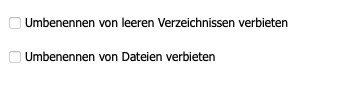
Miscellaneous / Prohibit renaming of empty directories / files
For RWRO-triggered volumes, this option can be used to prevent the upstream software from renaming empty directories and files.
Miscellaneous / An error is returned when attempting to delete files within the retention period
For volumes of the type "WORM with Retention Period and Versioning", you can define whether an error should be returned when a deletion is attempted within the retention period (default). If you deactivate this option, no error message is returned when a deletion is attempted, but the file nevertheless remains in existence.

Miscellaneous / Read before append
For volumes of the type "WORM with Retention Period and Versioning (RWRO triggered)", you can define whether, when data is appended to an existing file, the content should first be read back so that it is available in the cache.

Converting the Volume Type
For a volume that has already been created, the existing volume type cannot be converted into another one, with two exceptions. If the already created volume is of the volume type WORM or WORM with Retention Period (each without versioning), these can be converted into the corresponding volume type with versioning. This process is unidirectional and therefore irreversible. The function can be found in the edit mode of a volume, on the Miscellaneous tab.
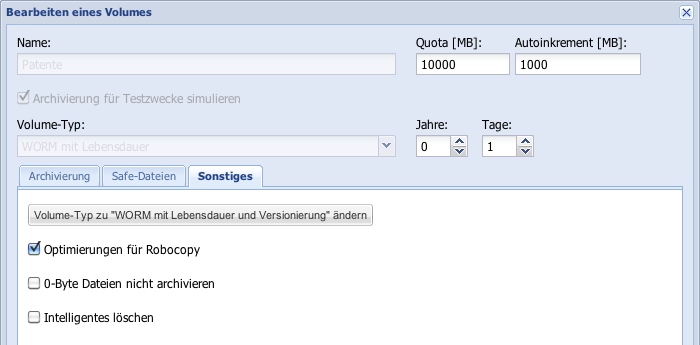
Volumes of the type WORM with Retention Period (RWRO-triggered) (see chapter 4.2.1.6) can be converted once and irreversibly into the type WORM with Retention Period (RWRO-triggered, Auto-Save).
Figure: Converting the volume type WORM with Retention Period (RWRO triggered)
Deleting Selected Volumes
In the Managing Volumes overview, it is possible to delete a volume. In order for a volume to be deleted, it must either be unused (0 bytes used and 0 files already archived) or all files must be deleted from this volume. Note that this is only possible for volumes in which the retention date (only for volumes with a retention period) has expired for all files in the volume.