
In the 'Resources' section, you can manage the controllers, Shelves, and Bricks within the Silent Brick Library.
Manage controllers
The 'Controllers' section provides an overview of all controllers and their relevant information.
To configure a controller, proceed as follows:
-
➤ Double-click on a controller.
-
➤ The 'Edit Controller' window will appear.
-
➤ Enter a description for the controller.
-
➤ Select a server rack for the controller.
-
➤ Select a rack position for the controller.
-
➤ To confirm your entries, click the “Save” button.
-
➤ To cancel your entries, click the “Cancel” button.
Manage Shelves
The 'Shelves' section provides an overview of all Shelves and their relevant information.
To configure a Shelf, proceed as follows:
-
➤ Double-click on a Shelf.
-
➤ The “Edit Shelf” window will appear.
-
➤ Enter a description for the Shelf.
-
➤ Select a server rack for the Shelf.
-
➤ Select a rack position for the Shelf.
-
➤ To confirm your entries, click the “Save” button.
-
➤ To cancel your entries, click the “Cancel” button.
Manage Bricks
The “Bricks” section provides an overview of all Bricks and their associated information.
To configure a Brick, proceed as follows:
-
➤ Double-click on a Brick.
-
➤ The “Edit Brick” window will appear.
Silent Brick Air/Plus/Max
-
➤ Enter a description for the Brick.
-
➤ Select a display mode for the screen.
-
➤ "QR Display": A QR code containing the relevant fields will be shown.
-
➤ "Text Display": The Brick's description is displayed as text. You can select from different orientations.
-
Silent Brick Pro
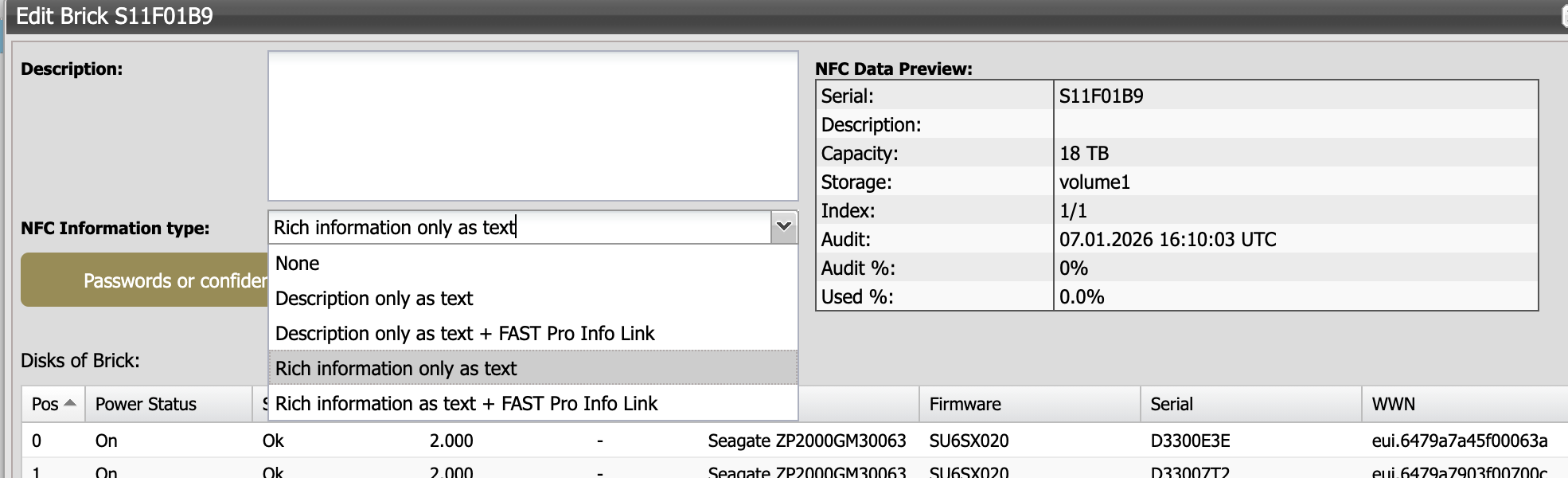
-
Enter a description for the Brick.
-
➤ Select which information should be stored in the NFC tag
-
➤ "Description only as text": The entered text is stored together with the serial number in the NFC tag.
-
➤ “Description only as text + FAST Pro Info Link”: The entered text is stored together with the serial number and a link to Silent Brick information in the NFC tag.
-
➤ “Rich information only as text”: The description, along with detailed media information, is stored in the NFC tag.
-
➤ “Rich information as text + Silent Brick Info Link”: The description, detailed media information, and a link to Silent Brick information are stored in the NFC tag.
-
When reading NFC tags encoded in Rich Information mode, an appropriate app may be required on the mobile device, as the output may otherwise be faulty or incomplete. When using the iPhone, the app 'NFC Tools' is recommended, for example.
-
➤ To confirm your entries, click the “Save” button.
-
➤ To cancel your entries, click the “Cancel” button.
To add a Brick to a Library, proceed as follows:
-
➤ Click on a Brick to select it.
-
➤ Click the 'Add to Library/Volume' button.
-
➤ The 'Select Library/Volume' window will appear.
-
➤ Click on a Library to select it.
-
➤ To confirm your selection, click the 'Select' button.
-
➤ To cancel your input, click the 'Cancel' button.
To remove a Brick from a Library, proceed as follows:
-
➤ Click on a Brick to select it.
-
➤ Click the 'Remove from Brick' button.